
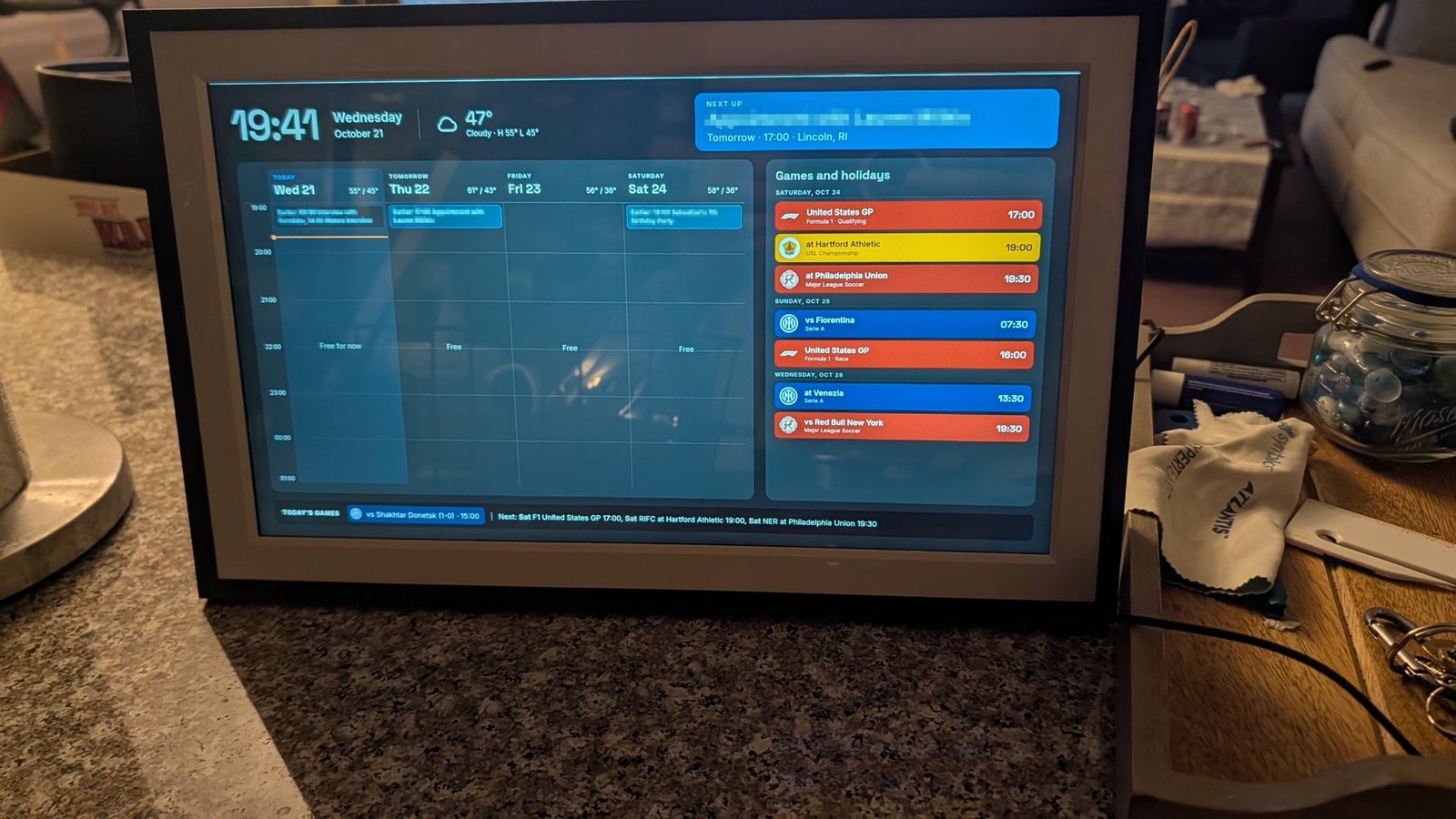
A photo frame turned counter calendar
I unlocked a cheap Frameo photo frame and turned it into a calendar for my kitchen counter that puts my own plans first, with my teams' games in their own colors off to the side.
At a glance
- Goal
- Stop my appointments getting lost between game days
- Built with
- Pastigio Frameo frame, ADB, Fully Kiosk Browser, Google Apps Script, Claude
- Result
- 4 design versions · 1 unlocked frame · $0 in software
The problem
My Google Calendar has everything in it: my personal appointments (medical, dates, events), birthdays, holidays, and the schedules of every team I follow. That’s the Celtics, the Patriots, the Revs, Rhode Island FC, Inter, the USMNT, Germany and Formula 1 (I follow a lot of teams). With all of that in one place, my own appointments get lost in the middle of it.
The spark was a video from Syntax, Jailbreaking a $50 photo frame. The idea: cheap smart photo frames are basically Android tablets in disguise, and with a little work you can strip out the stock software and run your own web dashboard on them. I liked the idea of doing this as a DIY project rather than buying something off the shelf.
Picking the frame
The design I landed on needed a 1080p screen, and to read it from across the kitchen it needed to be at least 15 inches. I compared two 15.6 inch frames on Amazon, a Pastigio and a Euphro, and went with the Pastigio. It runs Frameo, the most common photo frame software, which means more people have already opened one up (and documented it).
Buying it from Amazon also meant a return window. If it wouldn’t let me in, I could send it back and fall back to a cheap tablet or a Raspberry Pi with a portable monitor.
For comparison, an Amazon Echo Show is $349.99 and a Skylight Calendar is $319.99, and I’m not sure how much customizing you can do with either of them. The frame cost me $106.20 (with tax).
Designing it
Before buying anything, I mocked up the screen with my real calendar to see what would actually be readable. It took four versions to get it right.
Version 1: an agenda list
The first idea was a dark screen with a big clock and a list of what’s coming up for me, with games tucked into a small week strip at the bottom.
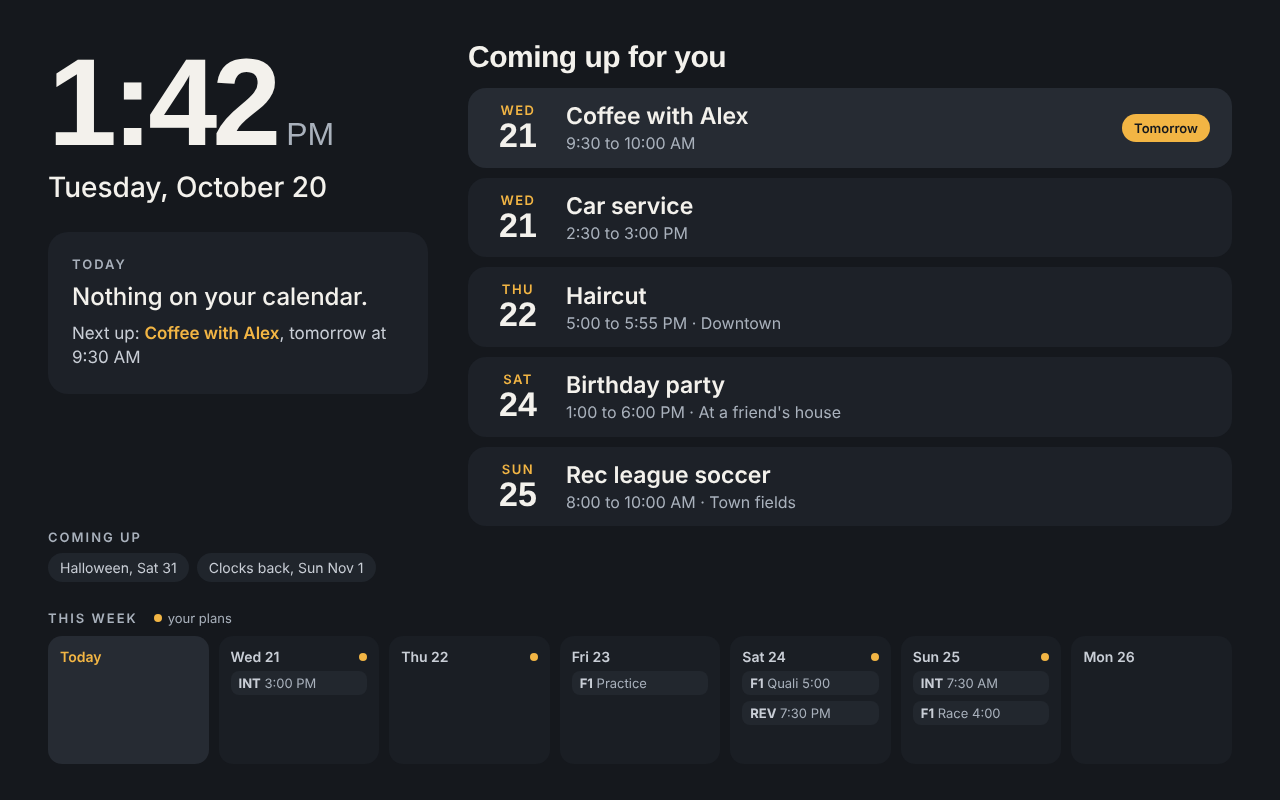
The problem: from a glance, a list makes everything look like it’s on the same day.
Version 2: a week board
Next, a light version where every day gets its own column, my plans as solid blue cards and games as small gray chips at the bottom of each day.
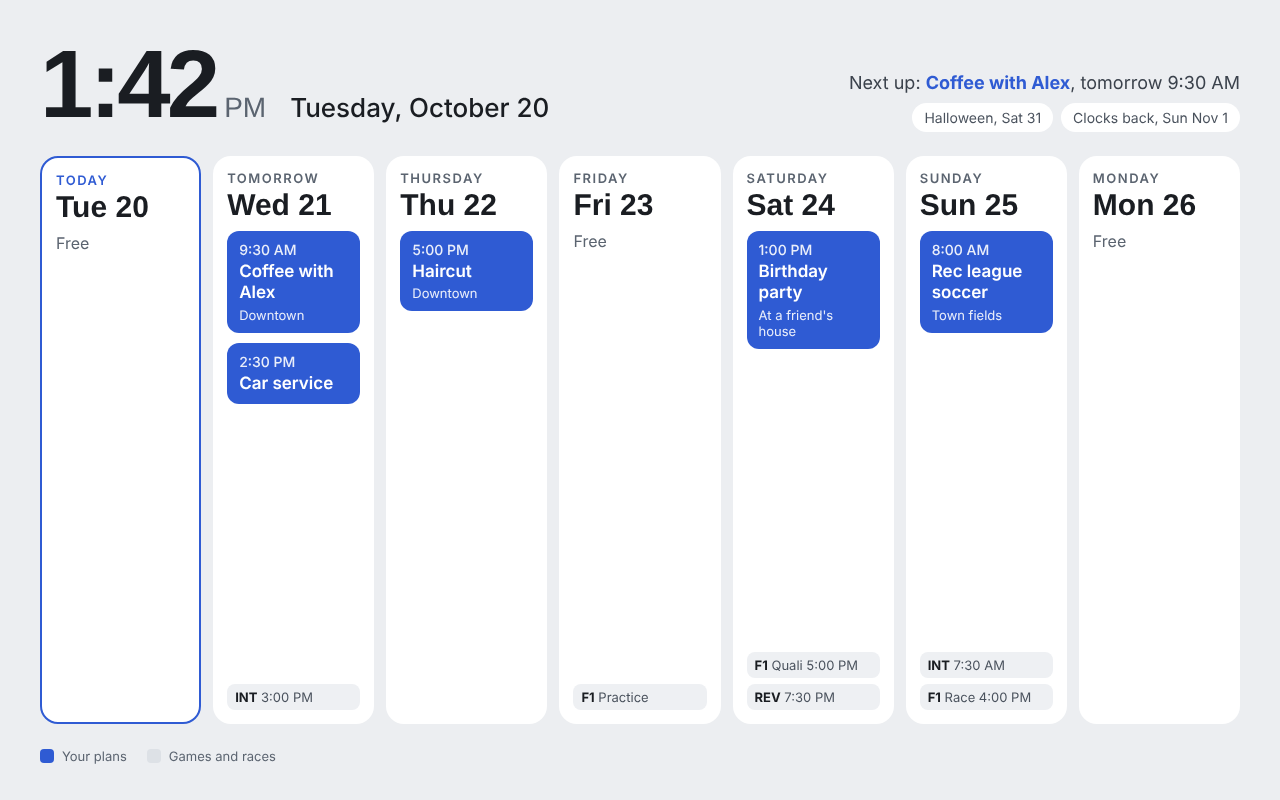
Better, but I wanted more. Two thirds of the screen for my next seven days, with appointments spaced out to reflect the time they are, and the other third for sports and holidays. That meant a bigger screen.
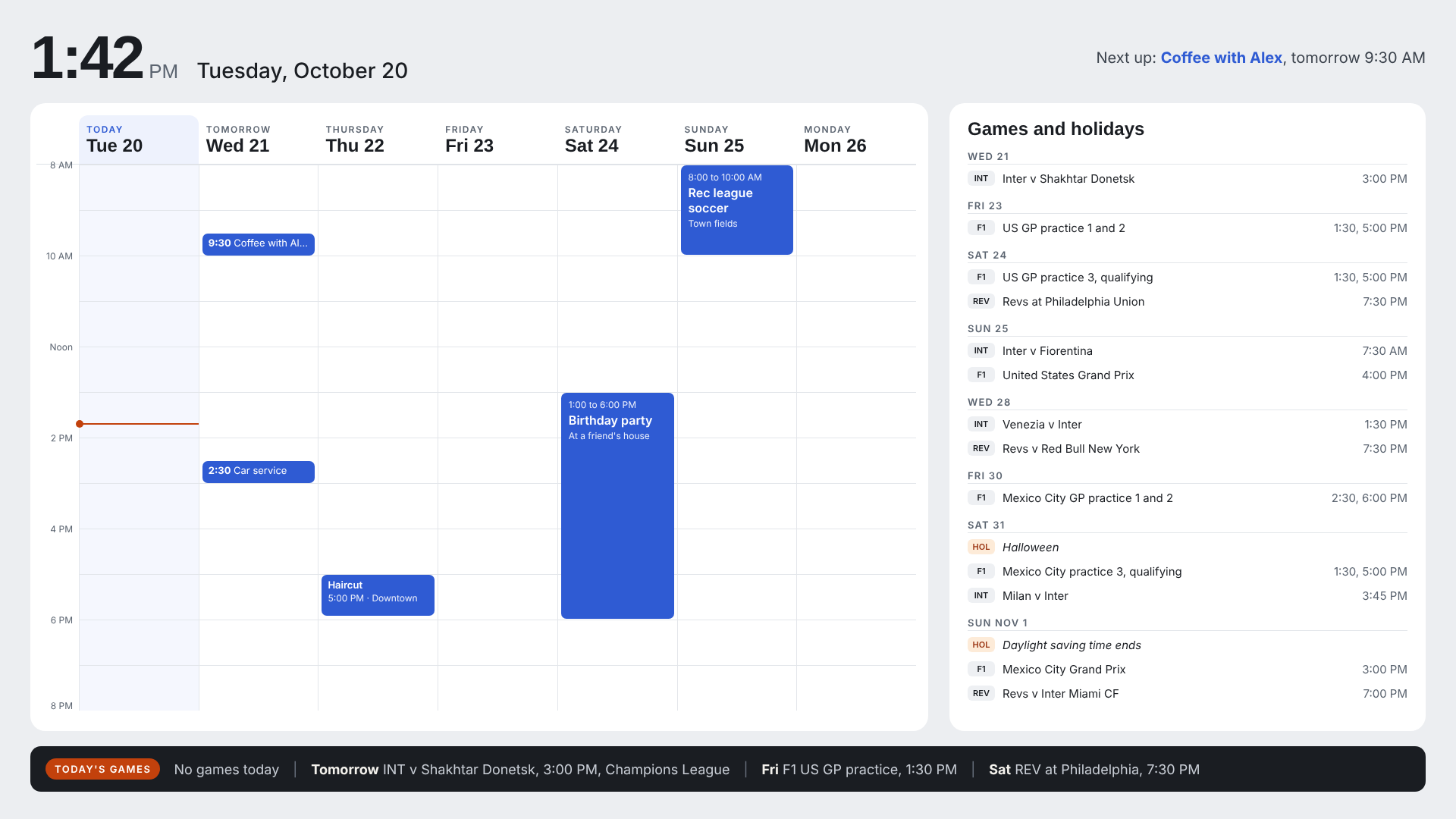
Version 3: a timed week, 1080p
This one moved to a 1920 by 1080 layout: a time grid from 8:00 to 20:00 where an appointment’s height matches how long it lasts, a games and holidays panel on the right, and a ticker along the bottom with the day’s games. The ticker only shows game times, never scores (I don’t want spoilers).
Version 4: the one
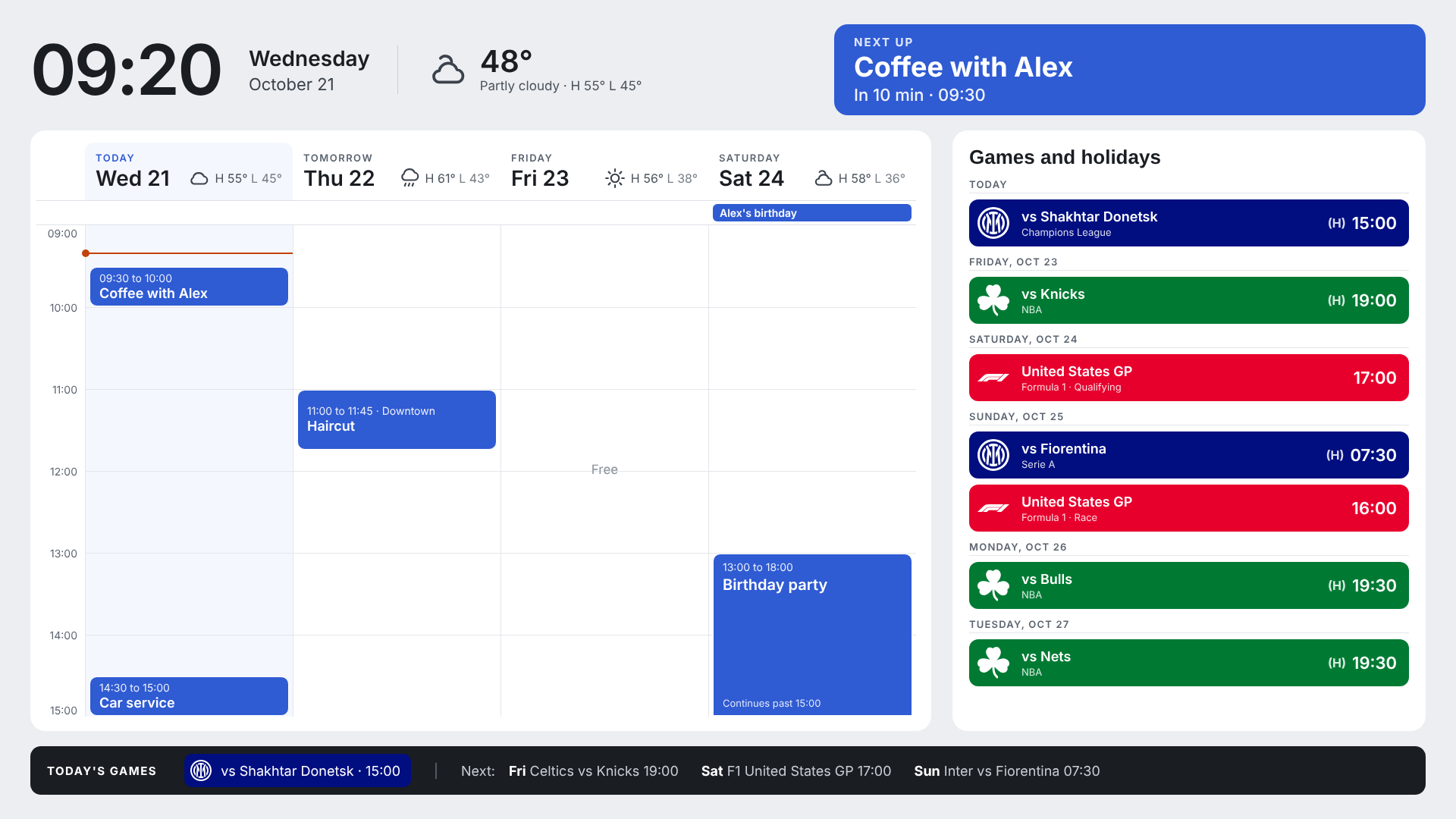
Version 4 is the one I loved. The changes:
- 24 hour time, plus the weather next to the clock and each day’s high and low.
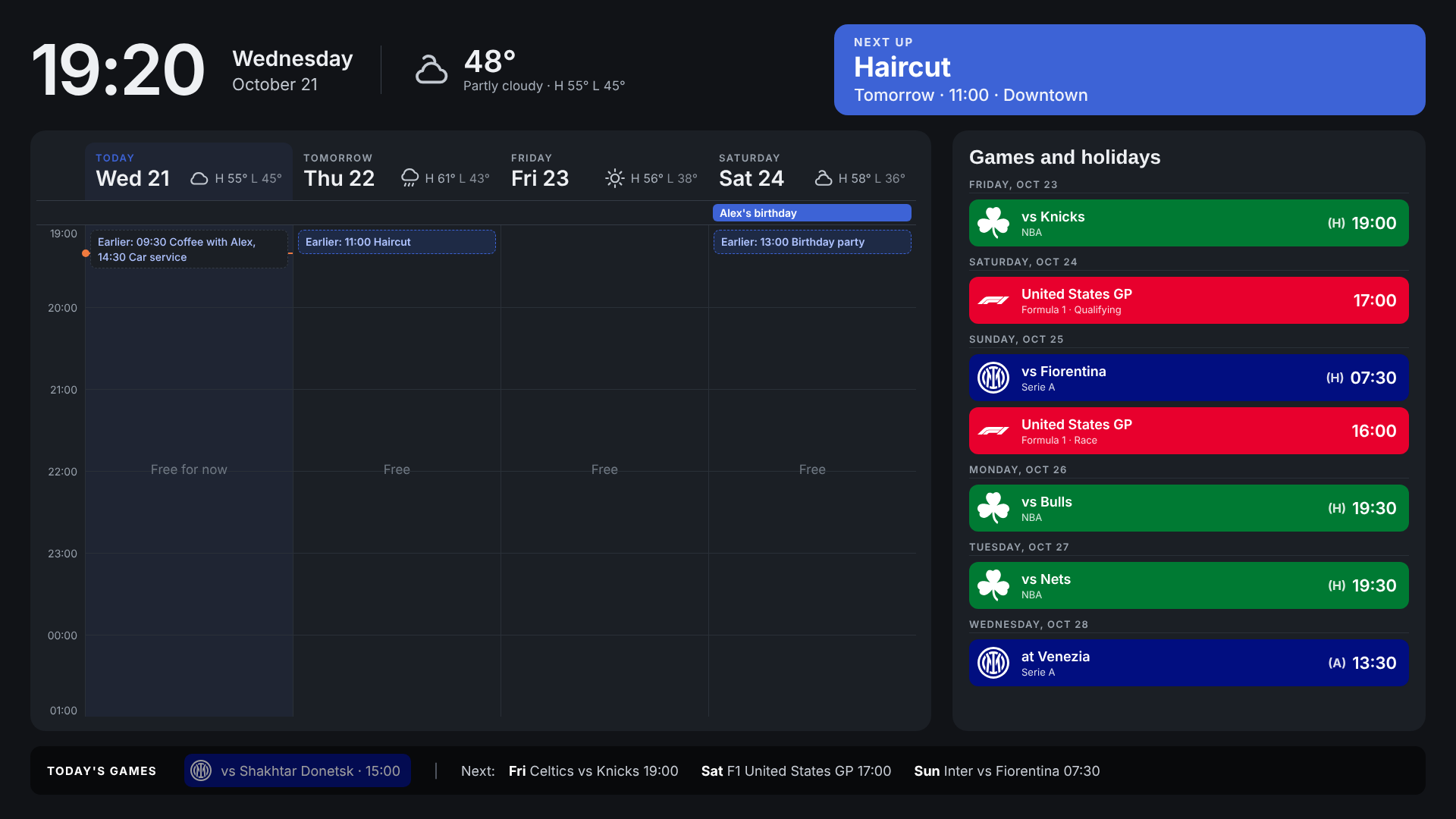
- Four days instead of seven, showing six hours starting with the current one. Anything outside that window shows up as a small “Earlier” or “Later” tag, and nothing goes missing.
- Every game in a block with the team’s colors and logo. The colors come straight from the team list on this site’s homepage, and the logos are white versions I made to sit on those colors.
- A big “Next up” card that’s readable from across the kitchen, and (H) or (A) for home and away.
Unlocking the frame
The unlocking turned out to be the easiest part. The creator of the Syntax video put his notes on GitHub (photo-frame-dashboard), and someone had already documented my exact frame there. Their unit needed a risky workaround to let a computer connect to it, but mine let my PC straight in after turning on ADB access in Frameo’s beta settings.
Even better, it already shipped with root access and a new enough built-in browser to run the dashboard. There was nothing to root and nothing to upgrade. From there:
- I switched off the two apps that push updates to the frame, since an update could undo everything.
- I installed Fully Kiosk Browser (the free version), which shows one web page full screen and opens when the frame starts up.
- I switched off the Frameo app and Android’s status bar app (which kept crashing once Frameo wasn’t covering it up).
The messy middle: making Fully the frame’s official home screen counts as “Kiosk Mode” in Fully, which is a paid feature, and the frame greeted me with a license screen. I backed that out and used a free startup app instead (more on that below).
Making it work
The dashboard itself is a web page running on Google Apps Script, which is free and lives inside my Google account. It reads my calendars directly, pulls the local weather, and loads the team logos from a folder in my Google Drive. It refreshes every few minutes, and switches to a dark mode at sunset.
A few things didn’t work the first time:
- The logos were invisible. I’d made them all white for the colored blocks, and the first version put each logo on a white circle. They were there, just white on white.
- The logos still didn’t load until I gave the script access to Google Drive (I’d left that checkbox unticked when I first approved it).
- Birthdays pushed the grid off the screen. All-day events take up a row, and the grid didn’t make room for them until it learned to shrink the hours to fit.
Night mode
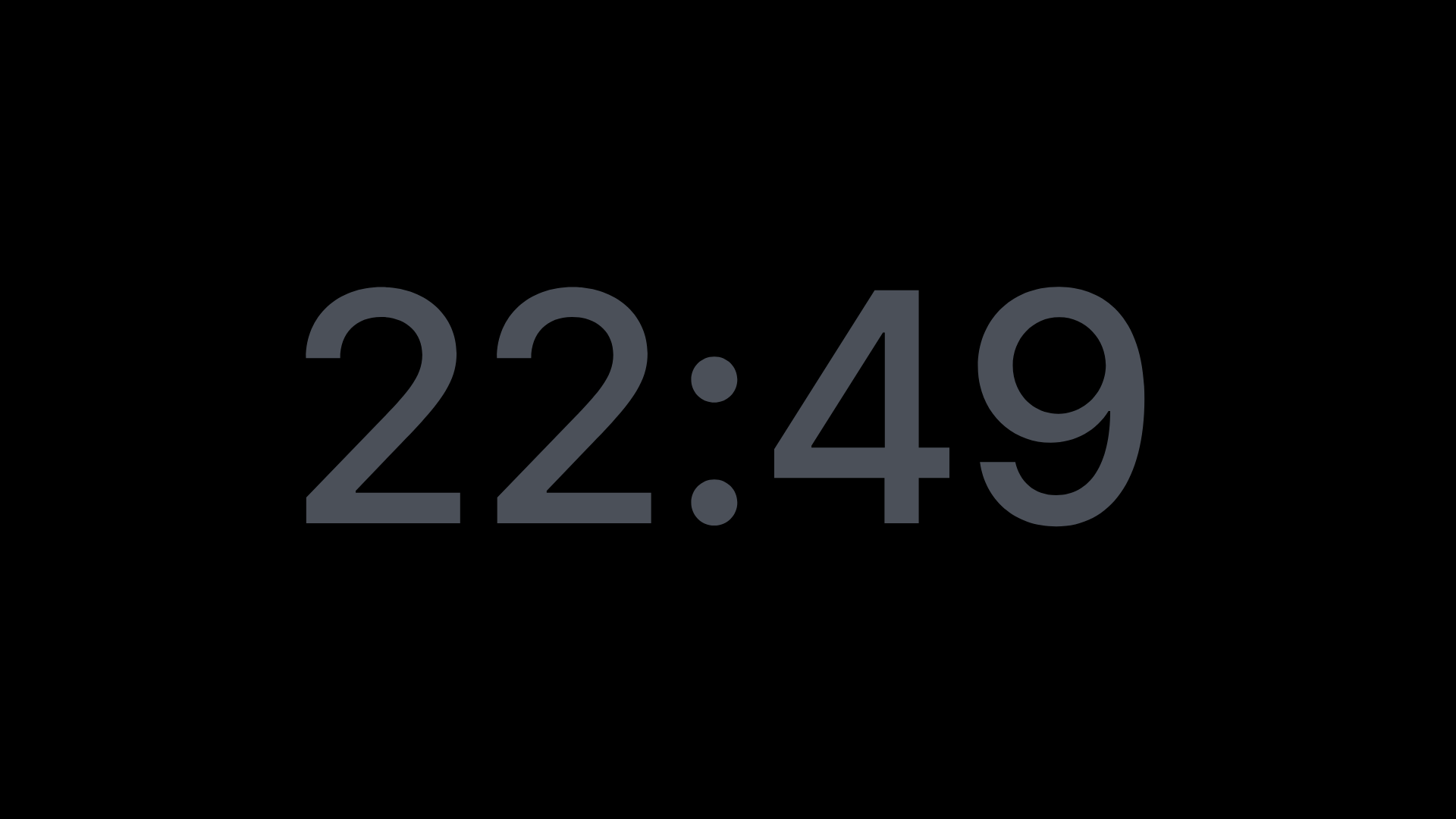
One thing I noticed immediately: even in dark mode, the frame glowed. That’s the backlight, and no dark color fixes it. I wanted something like my Google Nest Hub: just the time in gray on black, and the calendar back when I need it.
The frame doesn’t have a motion sensor (the only sensor is the one that detects rotation), and Fully’s screensaver is a paid feature. The free version came in two parts:
- The dashboard shows a gray clock between 21:00 and 6:30 after two minutes without a touch. A tap brings the calendar back.
- A small script on the frame turns the backlight down to its lowest readable level (3 out of 255) at the same time, and back up on a tap. A free app called Termux:Boot starts it, and opens the calendar, every time the frame turns on.
This part took a few rounds too. The script dimmed the screen within seconds and ignored taps at first (it couldn’t find Android’s tools when it started up at boot), and then refused to dim at all (this frame reports “time ran out” with a different code than usual). It works now.
What’s next
The calendar works, but it doesn’t have a permanent home yet. At 15.6 inches it’s pretty large for my kitchen counter, and I’m still figuring out where it should live in my apartment.
- Mounting it on the wall. That would free up the counter, but I’d want a discreet way to hide the plug or have the wire blend into the wall (a dangling cord would undo the whole look).
- Adding a motion sensor. The frame doesn’t have one built in, and I’d like the calendar to wake up when I walk by instead of waiting for a tap.
- Adding more screens. For example, a full month calendar view, my photos (it is a photo frame, after all), and more.
Big thanks to Wes Bos and the Syntax team for the idea and for documenting the hard parts.
This page was produced with a Claude repurposing agentic workflow I built, and Claude was my build partner for the project itself: the mockups, the dashboard code and the scripts on the frame. I made the calls, tested everything on my counter, and reviewed and edited everything before it went live. Curious how it works? Ask me how I built it!